Picture this. It is the 3rd of the month. Your bookkeeper sends you 27 questions. "What was this $412 charge?" "Is this Home Depot run for the duplex or the fourplex?" "Do you have a receipt for this?" You spend your Saturday digging through email to answer them.
Or maybe you don't have a bookkeeper at all, and your books are six months behind. Every time you open QuickBooks, you close it again.
Either way, I have good news. Claude can do this work now. It can read your books, find the mistakes, dig the receipts out of your inbox and write the entries. In my business it does the job a senior bookkeeper would charge $500 to $1,000 a month to do. My cost is a Claude subscription plus the QuickBooks plan I would be paying for anyway.
Here is exactly how to set it up, step by step, starting with the safest version.
One quick note first. I am a real estate investor, not your CPA. This is how I run my own books, not tax or accounting advice. Keep your CPA in the loop the whole way. I will show you how.
What this looks like, before and after
Here is a simple example, so you can see the trade. The numbers below are made up to show the math. Your numbers will be different.
- Before: you pay a bookkeeper $750 a month. That is $9,000 a year. You also spend about 2 hours a month answering their questions. That is 24 hours a year.
- After: you pay $20 a month for Claude Pro. That is $240 a year. Claude finds most of the answers itself, in your email and your QuickBooks file. You spend your time approving work instead of explaining it.
In that example, you keep about $8,760 a year. You pay for QuickBooks in both cases, so it does not change the math.
What you need (just two paid tools)
1. A paid Claude account
You need a paid Claude plan. As of November 2026, the Pro plan is $20 a month, or $17 a month if you pay for the year up front. Honestly, $20 a month is just fine for this. Prices change, so check Anthropic's pricing page before you sign up.
Why paid? Two reasons. Scheduled tasks, which let Claude do the books on a schedule, come with paid plans. And bookkeeping chats are long. You want the room.
2. QuickBooks Online
You need QuickBooks Online. The Simple Start plan, the cheapest one, is fine to start.
I would love to give you the exact price, but Intuit changes it often and runs new-customer discounts. Check the current price on Intuit's QuickBooks pricing page before you buy.
That is it. Two tools. Everything else in this guide is free setup.
Step 1: Connect Claude to QuickBooks with the Meridian connector
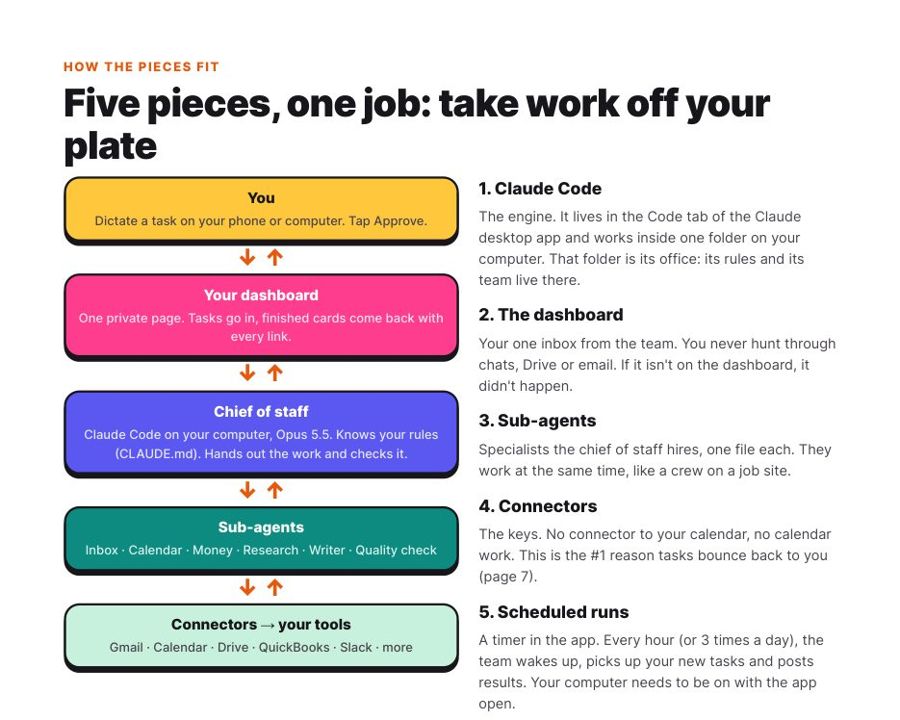
A connector is like a key. It lets Claude open one of your other apps. Without a QuickBooks connector, Claude can't see your books at all.
There is more than one way to connect Claude to QuickBooks. Intuit has its own connector, and there are others. I use the Meridian Connector for QuickBooks, and I recommend it. I have tried the options, and I have just found that Meridian is so much better for this work.
Here is what Meridian's listing in the Claude directory says it can do:
- Read your QuickBooks Online reports and transactions
- Create transactions, including journal entries
- Import credit card transactions in bulk
- Upload and attach receipts to transactions
- Work with more than one QuickBooks company, if you have more than one business
It is made by Pilot.com, and the listing marks it as Anthropic verified.
How to add it
The screens change from time to time, but the steps look like this:
- Open Claude and go to Customize, then Connectors.
- Browse the connector directory and search for "Meridian Connector for QuickBooks." You can also go straight to its listing on claude.com.
- Click to add it, then sign in to QuickBooks when it asks. Pick the company (or companies) you want Claude to see.
- Choose the access level for each company. Pick read-only for now. More on that next.
- Start a new chat. Click the plus button, choose Connectors, and make sure Meridian is turned on for that chat.
If anything looks different on your screen, Claude's help article on adding connectors has the current steps.
Step 2: Start read-only (this is the safe way to begin)
Meridian lets you choose read-only or read and write access, separately for each QuickBooks company you connect.
- Read-only means Claude can look at everything, but it can't change anything.
- Read and write means Claude can also create and edit entries, like journal entries.
I run mine on read and write. Claude writes my journal entries. But I do not recommend starting there. For most people, start read-only. Let Claude look around and tell you what it sees. Get some confidence in the setup. Then, when you trust it, give it full permission to act as your bookkeeper.
Claude also shows you what each connector is allowed to do. Open the connector in your settings and you can see which actions are reads and which are writes.
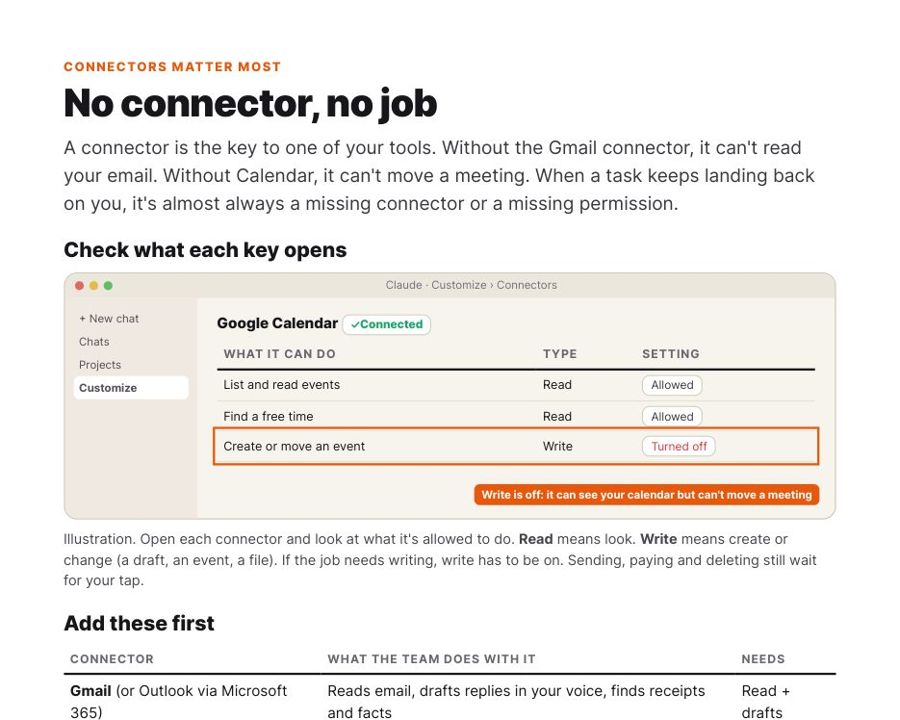
Read means look. Write means create or change. While you are learning, look is all you need.
Step 3: Ask Claude for a read-only review of your whole books
If your books are messy, this is the first real step. Start a brand new chat, so Claude is focused only on this job. Then paste something like this:
Using the Meridian QuickBooks connector, do a read-only review of my entire QuickBooks file. Do not change anything. Look for errors: duplicate transactions, transactions in the wrong category, uncategorized transactions, bank accounts that do not reconcile, missing income, and anything that looks odd. Give me a list sorted by dollar amount, biggest first, with what you think the fix is for each one.
Then read the list. Ask questions. "Why do you think this one is wrong?" "Show me every charge from this vendor." It is like sitting next to a bookkeeper who has already read every line.
You will likely be surprised by what it finds. You might also find that some of its "errors" are not errors. That is fine. You know your business. Tell it, and it will adjust.
Step 4: Connect your email so Claude can find receipts
This is the step that made me a believer.
Connect your email in Claude too. Gmail, for example, is in the same connector directory. Once it is connected, Claude can search your inbox for invoices and receipts. If you paid for something and the receipt is sitting in your email, Claude can find it and make sure that transaction is in QuickBooks.
Here is what happened when I did this. We had quite a few rental cars charged on our Amex Platinum, because we got a significant discount by booking them that way. But they were real business expenses that needed to be reimbursed by the business. Claude found them. I would not have remembered those on my own.
Try a prompt like this:
Search my email for receipts and invoices from this year. For each one, check whether the charge is in QuickBooks. List any receipt that has no matching transaction, and any business expense that was paid with a personal card.
Step 5: Get every bank account and credit card into QuickBooks
Here is the rule. Claude can only see what is in QuickBooks. If a bank account or credit card is not in your QuickBooks file, Claude can't read it, and it can't do the full job of a bookkeeper.
If your bank syncs
Connect it inside QuickBooks. In QuickBooks Online, go to the Bank transactions page and choose to connect or link an account. QuickBooks will then pull in new transactions on its own. Intuit's help pages have the current steps.
If your bank does not sync
Some banks just will not connect. We have 26 bank accounts across six different banks, and some of them do not sync. So for those, I do it by hand:
- Log in to the bank's website.
- Export the transactions as a file. A CSV file works. You can pull the year to date, or longer if you are behind.
- In QuickBooks, go to Bank transactions, pick the account, and upload the file.
QuickBooks accepts a few file types, including CSV, and caps each upload at 1,000 lines. If your file is bigger, split it into smaller date ranges. Upload a little before your earliest transaction, and check for duplicates afterward.
Once the transactions are in, Claude can see them. It will suggest which account in your chart of accounts each one belongs to. Your chart of accounts is just the list of buckets your money goes into, like "Repairs," "Utilities" or "Rent income." Sometimes Claude will suggest adding a new category or a new class (a tag, like one for each property) so your reports make more sense. Say yes to the ones that help you.
Step 6: Upload your closing statements
Did you buy, sell or refinance a property this year? Then grab the closing statement for each one. It is often called a HUD or settlement statement. It lists the price, the loan, the fees and the credits.
Upload each one to Claude and ask:
Here is the closing statement for 123 Main Street. Check that every item on it is in QuickBooks: the purchase or sale, the loan, the fees, the prepaid items and any credits. List anything that is missing or does not match.
Closings are where a lot of money hides. There are loan fees, title fees, prorated taxes and credits. They are easy to miss and they matter at tax time. Let Claude check every line.
Step 7: Let Claude flag things for your CPA
As Claude works, it will often say something like "flag for CPA." That is great. CPAs love this.
Here is the mindset. Your job, and Claude's job, is to get everything into your QuickBooks file. Every transaction, every receipt, every closing. You do not need to make every hard call. When something is tricky, like whether a cost is a repair or an improvement, Claude can put the entry in and flag it.
Then your CPA sees the flags and can split or recategorize those entries the right way. They get a complete file with the questions already marked. That is a much better day for them than a shoebox.
A simple prompt to use:
When you are not sure how to categorize something, do not guess. Put it in, add a note that says "Flag for CPA" and tell me why.
Step 8: Give it a day or two
If your books are messy, expect this to take a day or two of finesse to get things dialed in. You will go back and forth with Claude. It will ask you things only you know, like which property a charge belongs to.
The difference is that you answer each question once. Tell Claude the rule ("All Lowe's charges in March were for the Elm Street turn") and it applies the rule everywhere.
Step 9: Turn on read and write when you trust it
Once the review looks right and you trust the setup, change Meridian's access for that company from read-only to read and write. Now Claude can write the journal entries and fix the errors it found, instead of just listing them.
My tip: for the first few rounds, ask Claude to show you what it plans to enter before it enters it. Something like, "List the entries you want to make. Wait for my OK, then make them." Once that feels boring, you are ready for the next step.
Step 10: Put Claude on a schedule
This is where it starts to feel like a real bookkeeper. Claude can run tasks on a schedule, on its own. In Claude, these are called scheduled tasks, and they come with paid plans. You can find them on the Scheduled page, or just ask Claude in a chat to schedule something for you. Claude's help center has a guide to scheduling recurring tasks.
I suggest two.
A weekly bookkeeping check
Pick a day, like every Monday or every Friday. Have Claude look at new bank transactions, suggest a category for each one, ask for your approval, and then enter them. A prompt like:
Every Monday morning, look at all new bank and credit card transactions in QuickBooks since last week. Suggest a category and class for each one. Send me the list and wait for my approval. After I approve, enter them.
A monthly P&L in your inbox
The second one is my favorite. Set up a task that emails you a profit and loss statement, or P&L, every month. A P&L shows what came in, what went out, and what was left. You can also run it weekly, but I prefer monthly.
On the 5th of every month, run last month's profit and loss report from QuickBooks, by property. Email it to me with a short note on anything that changed a lot from the month before.
Now your books stay current, and you see your numbers every month without lifting a finger.
The safety rules I run on
Claude is fast. Fast is only good when it is pointed the right way. These rules keep it that way.
- Start read-only. Move to read and write only when you trust it.
- Claude keeps the books. It does not move money. Paying bills and sending money stay with you.
- Approve before it enters, at least at first.
- Use a fresh chat for big jobs, like the first full review.
- When unsure, flag it for your CPA instead of guessing.
- Look at your monthly P&L. If a number looks off, ask Claude about it, the same way you would ask a person.
How this fits with the rest of my setup
This guide is the deep dive on one piece of my business. If you want the bigger picture, I wrote about how my AI agents also check every property management statement in The AI-Enabled Investor. And if you want Claude to run more than your books, see how I built my AI chief of staff.
Clean books also make tax season much less painful. Once your file is current, my list of year-end tax moves is a good thing to bring to your CPA.
I will share more advanced strategies in a part two soon. For now, start with Step 1 this week. Connect Meridian, go read-only and ask for the review. I would love to hear what Claude finds in your books. Hit reply on any of my emails and tell me.
Jennifer